WooCommerce Speed Optimization: 12 Practical Fixes
Speed up your online store with 12 practical WooCommerce speed optimization fixes, from hosting and caching to images, plugins and HPOS.
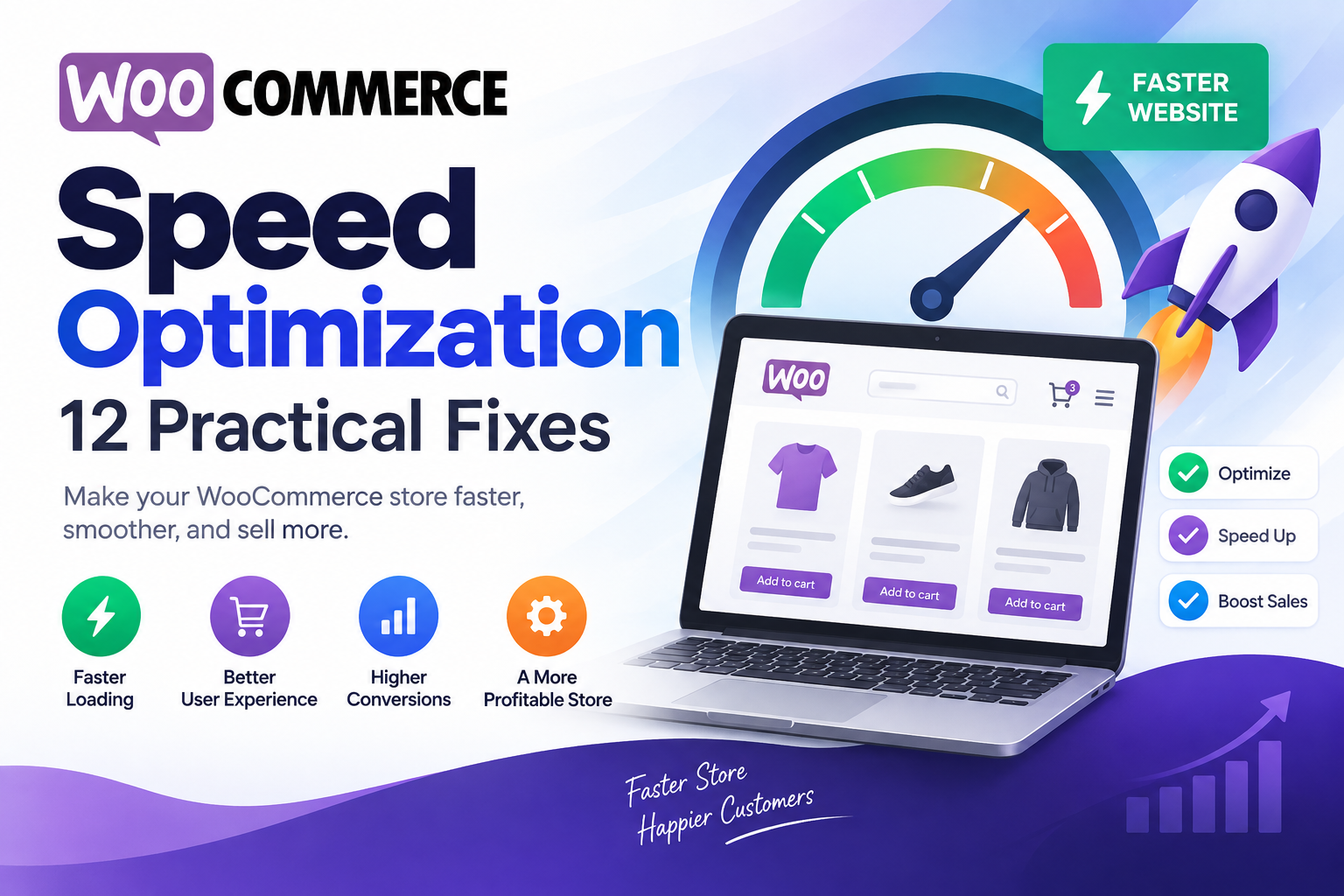
A slow store costs you sales before a customer ever sees your products. WooCommerce speed optimization is not about one magic plugin. It is a set of practical fixes across hosting, caching, images, plugins and your database. This guide walks through 12 of them, in the order we usually tackle them on client stores.
You do not need to do everything at once. Start by measuring, fix the biggest problems first, and re-test after each change.
Why WooCommerce speed matters
Speed affects both people and search engines. Shoppers abandon pages that feel sluggish, especially on mobile, and slow checkouts create friction at the exact moment someone is ready to pay. Google also uses page experience signals, including Core Web Vitals, as part of how it evaluates pages.
WooCommerce stores are harder to speed up than brochure sites because many pages are dynamic. The cart, checkout and account pages change for every visitor, so you cannot simply cache everything.
1. Measure before you change anything
Run your home page, a category page, a product page and the checkout through PageSpeed Insights. Note the Largest Contentful Paint (LCP), Interaction to Next Paint (INP) and Cumulative Layout Shift (CLS). On the server side, a plugin such as Query Monitor shows slow database queries and which plugins add the most load time.
Record your starting numbers so you can prove each WooCommerce speed optimization step actually helped.
2. Start with the right hosting
Good WooCommerce speed optimization starts with hosting, because no amount of tuning fully makes up for a weak server. For a WooCommerce store, look for:
- A current, supported PHP version
- Enough CPU and memory for your traffic and catalogue size
- Server-level caching and support for an object cache such as Redis
- Servers located close to most of your customers
3. Use page caching, and exclude dynamic pages
Page caching serves a saved copy of a page instead of rebuilding it for every visitor. It is one of the biggest wins for product and category pages. The key rule for WooCommerce speed optimization is to never cache the cart, checkout or My Account pages, and to skip caching for logged-in customers. Most good caching plugins and hosts detect WooCommerce and add these exclusions, but always check.
4. Add a persistent object cache
WooCommerce runs many database queries. A persistent object cache such as Redis stores the results in memory, so repeated queries return almost instantly. This helps dynamic pages that page caching cannot cover, including the admin area and checkout.
5. Switch to High-Performance Order Storage (HPOS)
HPOS stores orders in dedicated database tables instead of the general posts tables. It is designed to scale better as your order count grows, and it is enabled by default for new stores in recent WooCommerce versions. For older stores, check that your plugins are compatible first, then migrate from WooCommerce settings.
6. Optimise product images
Images are often the heaviest part of a product page. To keep them light:
- Upload images close to the size they are displayed, not straight from a camera
- Serve modern formats such as WebP or AVIF where supported
- Lazy load images below the fold, but not your main product image
- Set width and height so the layout does not jump while images load
7. Audit your plugins
Every active plugin can add scripts, styles and database queries. List your plugins and ask three questions for each one: is it still needed, is it maintained, and is there a lighter way to do the same job? Removing a handful of unused plugins is often the quickest WooCommerce speed optimization win on older stores.
8. Watch cart fragments and AJAX calls
WooCommerce can refresh the mini cart using an AJAX request called cart fragments. Recent versions only load it when a mini cart is used, but some themes and plugins still load it on every page. If your cart total does not need to update live everywhere, limiting it to the pages that need it can reduce server load noticeably.
9. Load scripts only where they are needed
Many plugins load their CSS and JavaScript on every page, even when their feature appears on just one. Slider scripts on the checkout, or review widgets on the blog, all slow things down. Conditionally loading assets, deferring non-critical JavaScript and removing unused CSS can improve both loading and interaction times.
10. Clean up your database
Over time, stores collect expired transients, old post revisions, spam comments, abandoned sessions and scheduled action logs. Cleaning these regularly keeps queries fast. Always take a full backup before running any clean-up, and avoid deleting data you may need for accounting or reporting.
11. Use a CDN
A content delivery network serves images, CSS and JavaScript from servers close to each visitor. If you sell internationally, a CDN can make a clear difference to load times for customers far from your main server.
12. Keep everything updated
WordPress, WooCommerce, your theme and PHP all receive performance improvements over time. Test updates on a staging copy of your store first, then keep your live site current. Outdated PHP in particular can hold back performance and security.
When to get help with WooCommerce speed optimization
If your store is still slow after these steps, the cause is usually deeper: a heavy theme, a problematic plugin, inefficient custom code or hosting that does not fit your traffic. Our WooCommerce development team audits stores, finds the real bottlenecks and fixes them without breaking your checkout. If search visibility is part of the goal, our SEO services cover Core Web Vitals too.
WooCommerce speed optimization FAQs
How fast should a WooCommerce store load?
Aim to meet Google’s Core Web Vitals thresholds, including a Largest Contentful Paint of 2.5 seconds or less for most visits. Test on mobile, not only on a fast desktop connection.
Will caching break my cart or checkout?
Not if it is set up correctly. Cart, checkout and account pages must be excluded from page caching, along with logged-in users. Test adding to cart and checking out after enabling any cache.
Is it safe to switch to HPOS?
For most stores, yes, as long as your plugins support it. Check compatibility in WooCommerce settings, test on staging and keep a backup before migrating.
Want a faster store without the trial and error? Contact us for a free consultation and we will review where your store is losing speed.